Title here
Summary here
November 25, 2022 in Linux5 minutes
The default desktop environments in pentesting distributions like Kali or Parrot are not very productive. In this post you will see an example of a tiling window manager called bspwm, which will make you much more productive and faster at your work
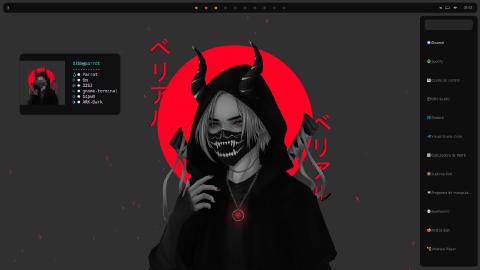
In this guide I explain how you can build your own fully customizable environment from scratch, so you can give 100% at work or in your studies. Heads up! This guide is meant for Debian-based distributions, although it can be done on others too, but the commands will change
Examples of environments I’ve made:


Bspwm is a tiling window manager, which works really well for writing and programming. However, if you need to do tasks that require a different desktop environment, you can switch from the login menu.
sudo apt install bspwm
The bspwm config file has to be moved to ~/.config/bspwm/bspwmrc
Default bspwmrc:
#! /bin/sh

pgrep -x sxhkd > /dev/null || sxhkd &

bspc monitor -d I II III IV V VI VII VIII IX X

bspc config border_width         2
bspc config window_gap          12

bspc config split_ratio          0.52
bspc config borderless_monocle   true
bspc config gapless_monocle      true

bspc rule -a Gimp desktop='^8' state=floating follow=on
bspc rule -a Chromium desktop='^2'
bspc rule -a mplayer2 state=floating
bspc rule -a Kupfer.py focus=on
bspc rule -a Screenkey manage=off
There you can customize the number of workspaces you want, add programs that run when bspwm starts, configure borders, etc…
Polybar is a tool for creating status bars. It is fully customizable; its only two limitations are that you can’t place it on the right or left side, and you can’t add images.
sudo apt install polybar
Polybar is split into different modules, such as the date module, the Wi-Fi module, etc. You can use the ones from the themes, add extra modules, or create them all from scratch
There are lots of ready-made themes for polybar, for example
github.com/adi1090x/polybar-themes
If you like them or use them, don’t forget to support the creator by giving them a star on GitHub
adi1090x
#Clonar el Repositorio
git clone https://github.com/adi1090x/polybar-themes
#Y entrar en la carpeta, dar permisos de ejecución al setup.sh y ejecutarlo.
cd polybar-themes
chmod +x setup.sh
./setup.sh
My theme
#Clonar el repositorio
git clone https://github.com/d3b0o/dotfiles
#Crear la carpeta de configuraciones de la polybar y mover la configuración ahí.
cd dotfiles
mv polybar ~/.config/polybar
Now you have all the themes installed in ~/.config/polybar/.
Each theme has the following files (some themes have other files, but in the end they all have the same)
| File | Purpose |
|---|---|
| config.ini | File with the general polybar configuration |
| modules.ini | Module configuration |
| bars.ini | Configuration of the modules with bars |
| colors.ini | All the colors |
| launch.sh | Running it shows the polybar. For the polybar to show up every time we open bspwm, we have to add the path to launch.sh in ~/.config/bspwm/bspwmrc |
| user_modules.ini | All the user modules are here |
Main module settings
| Variables | Purpose |
|---|---|
| interval | How often you want it to refresh (in seconds) |
| format-prefix | You can set any icon you want |
| format-prefix-foreground | The icon color |
| label | You can choose what you want it to show; the options are listed under Available tokens |
| format | You can choose the format you want; the options are listed under Available tokens |
[module/]
type = custom/script
interval =
exec =
In exec you put the script whose output you want to show in the polybar
[module/]
type = custom/text
content =
In content goes the text you want to show in the polybar
In modules you can make something run when clicked…
| possible clicks |
|---|
| click-left = |
| click-middle = |
| click-right = |
| scroll-up = |
| scroll-down = |
| double-click-left = |
| double-click-right = |
sxhkd is a simple hotkey daemon usable within bspwm, needed to communicate with bspwm and launch the applications of your choice.
git clone https://github.com/baskerville/sxhkd.git
cd sxhkd
make
For the configuration you need the following file at ~/.config/sxhkd/sxhkdrc
https://github.com/baskerville/bspwm/blob/master/examples/sxhkdrc
At the bottom of the config file (~/.config/sxhkd/sxhkdrc)
#combinación de teclas
    #que ejecutara

#Ejemplo
super + shift + g
    google-chrome
Picom is what’s known as a compositor for Xorg. It is a fork of compton, which in turn is a fork of other compositors. This compositor lets you use shadows, transparency, rounded corners, etc…
#dependencias
sudo apt install libxext-dev libxcb1-dev libxcb-damage0-dev libxcb-xfixes0-dev libxcb-shape0-dev libxcb-render-util0-dev libxcb-render0-dev libxcb-randr0-dev libxcb-composite0-dev libxcb-image0-dev libxcb-present-dev libxcb-xinerama0-dev libxcb-glx0-dev libpixman-1-dev libdbus-1-dev libconfig-dev libgl-dev libegl-dev libpcre2-dev libevdev-dev uthash-dev libev-dev libx11-xcb-dev meson
git clone https://github.com/ibhagwan/picom.git
cd picom
git submodule update --init --recursive
meson --buildtype=release . build
ninja -C build
sudo ninja -C build install
The picom config file is at ~/.config/picom/picom.conf, where you can change the borders, shadows, transparency, etc…
This is what picom.conf contains
https://gist.github.com/scheckley/b91d7b50c7f372ba7107baf01127da3a
Rofi started as a clone of simpleswitcher, written by Sean Pringle, a popup window switcher roughly based on superswitcher. Simpleswitcher laid the foundation, and therefore Sean Pringle deserves most of the credit for this tool. Rofi (renamed, as it lost the simple property) has been extended with extra features, like an application launcher and an ssh launcher, and can act as a drop-in replacement for dmenu, making it a very versatile tool.
Rofi, like dmenu, will provide the user with a textual list of options where one or more can be selected. This can be running an application, selecting a window, or options provided by an external script.
sudo apt install rofi
Just like polybar, there are lots of ready-made themes, for example:
github.com/adi1090x/rofi
If you use or like the themes, don’t forget to give them a star on GitHub
Installing the theme is simply:
git clone 2--depth=1 https://github.com/adi1090x/rofi.git
cd rofi
chmod +x setup.sh
./setup.sh
All the themes are in ~/.config/rofi
The themes’ GitHub has pictures of all of them, so you can pick the one you like most
To open rofi, you just have to run the .sh file in the themes folder