Title here
Summary here
December 5, 20224 minutes
The Rubber Ducky is a USB stick with some special features. Unlike a normal USB stick, where you can store files, photos, etc., the Rubber Ducky is a device that injects predefined keystrokes.
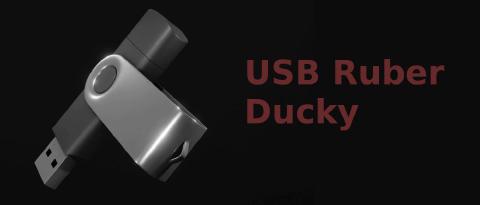
The Rubber Ducky is a USB stick with some special features. Unlike a normal USB stick, where you can store files, photos, etc., the Rubber Ducky is a device that injects predefined keystrokes. It was developed by hak5 and can currently be bought on their website for $79.99.
What makes it so dangerous is that antivirus software doesn’t detect it, because computers see it as a keyboard.
The Rubber Ducky has appeared in some TV shows, such as Mr. Robot.
 (Mr. Robot scene)
It is a very simple language that can be written in any text editor. It also works with other hak5 devices, for example:
| DuckyScript™ Version | Device Compatibility |
|---|---|
| 1.0 | Original USB Rubber Ducky (USB-A Only) |
| 2.x | Bash Bunny, Key Croc, Packet Squirrel, LAN turtle, Shark Jack, O.M.G Devices |
| 3.0 | New USB Rubber Ducky (USB-A & USB-C) |
REM is used to write comments
REM Esto no se va a interpretar
The DELAY command tells the USB to pause for a moment. This is useful for scripts that, for example, open a window or an application and have to wait for it to load
DELAY 1000
STRING makes it type a phrase or word. The USB automatically presses shift for uppercase letters and the space bar for spaces, but it doesn’t handle trailing spaces
STRING Hello world!
What the Rubber Ducky will type
Hello world!
It is like STRING, but it presses enter at the end
They can be used to move around a window or application.
They are mainly used by the operating system for special functions, and they can be used to interact with text areas and navigate the user interface.
These are keys that are combined with another key to perform a special function
REM Ejemplo de teclas de modificación

REM Windows Run
GUI r

REM Cerrar Ventana
ALT F4

REM Pegar
CTRL c
They can be combined with each other
To press a modifier key on its own, you have to put INJECT_MOD before it
REM Ejemplo presionando la tecla de Windows sola

INJECT_MOD
WINDOWS
Lock keys toggle between on and off
Inside the Rubber Ducky there is a small button that can be used in scripts. By default, pressing it restarts the loaded script, but its function can be changed:
Pauses the script until the button is pressed
REM Ejemplo uso de WAIT_FOR_BUTTON_PRESS

STRING Hello World!
WAIT_FOR_BUTTON_PRESS
STRING Has presionado el botón...
Defines a function that will run whenever the button is pressed at any point in the script, as long as the button isn’t already being used by the WAIT_FOR_BUTTON_PRESS command or a similar function.
BUTTON_DEF
    STRING Has presionado el botón.
END_BUTTON
As their names suggest, they disable and enable the button.
DISABLE_BUTTON
REM Botón desactivado

ENABLE_BUTTON
REM Botón activado
The Rubber Ducky has a small LED inside that can be controlled from scripts
Turns the LED off
Turns the LED red
Turns the LED green
In the Rubber Ducky support section you can download a JSEncoder, which is a file with the .html extension. On Linux you open it with firefox jsencoder.html, and on Windows: right click, open with, browser

The Rubber Ducky uses the English keyboard layout by default. To change it, you have to download the language you want from https://github.com/hak5/usbrubberducky-payloads/tree/master/languages and then load it into the jsencoder

To make the Rubber Ducky do a hello world, put the following into the jsencoder:
DELAY 200
STRING Hola Mundo!!!

Now all you have to do is click generate payload, and a file called inject.bin will be downloaded. It has to go on the microSD card (there can only be one inject.bin, so delete the old ones).
The first and most obvious thing is not to leave computers, phones, printers, etc. unlocked.
There is a Windows program that runs in the background and protects you from the Rubber Ducky and similar devices. I haven’t tried it, but from what I’ve seen online, when it detects the Rubber Ducky it stops it, locks the computer and logs all the Rubber Ducky’s keystrokes so you can see what the attacker intended
https://lospi.net/beamgun/